SpannerDB Connector
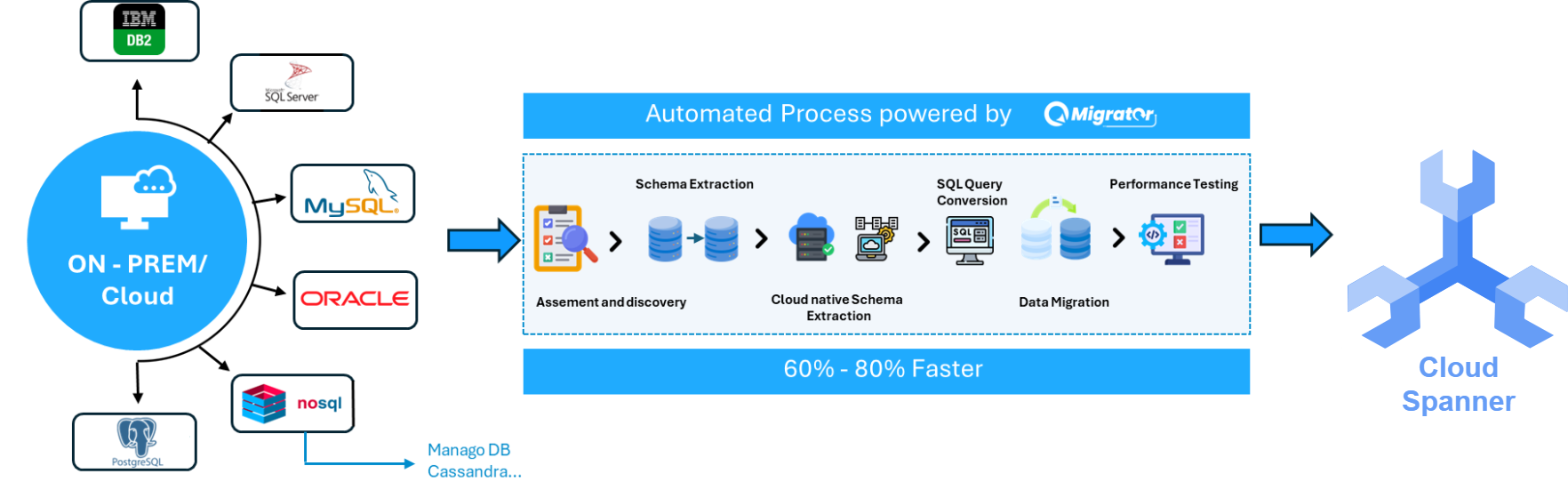
The SpannerDB Connector enables migration of legacy databases such as Oracle and SQL Server to Google Cloud Spanner. Google Spanner is a fully managed, mission-critical database that supports relational, graph, key-value, and search workloads. It provides global transactional consistency, automatic synchronous replication for high availability, and supports GoogleSQL and PostgreSQL dialects. The connector automates schema conversion and data transfer with secure private networking. Learn more in Spanner documentation | Google Cloud Documentation.
Prerequisites & Configuration
QMigrator must be installed.
Before proceeding, ensure you have:
- Valid project details and login credentials from Quadrant
- Database connection details and access credentials for source and target systems
- Network reachability confirmed between QMigrator and your database environments
- Appropriate permissions configured (see below)
Required Permissions
QMigrator reads data from one or more tables across different schemas and migrates them to target databases.
Recommended Setup
Create a dedicated QMigrator service account with the appropriate IAM roles to connect to your Spanner database. The QMigrator account must have:
- Schema Creation & Admin Access: Ability to create the schema and full admin access to all tables within that schema, including create, delete, read, and write operations
- Read-only Access: Read-only access to any tables and views in any schema that QMigrator needs to access
- Read-write Access: If loading service data into your warehouse, read-write access to the schema where QMigrator loads data
Service Account Configuration
With Spanner, create a service account with the appropriate IAM roles. Store the service account key securely and make it accessible to QMigrator.
You can configure Spanner access through the Google Cloud Console or the gcloud CLI.
Network Configuration
QMigrator can connect to CloudSQL instances using various networking controls.
Allowed IP Addresses
Add QMigrator's public IP addresses to your firewall to allow only the QMigrator user to connect.
To get QMigrator IP address: Use your GKE cluster with NAT Gateway to retrieve the public IP address.
Connecting Within VPC
Create the GKE cluster in the same network using a VPC-native cluster. This enables QMigrator to connect to Spanner within the same network using Private Google Access.
Connection Setup in QMigrator
- Click on the Setup menu and navigate to the Connections screen
- Select Database as the migration source to create the source connection
- In the Connection Type field, choose your target database type
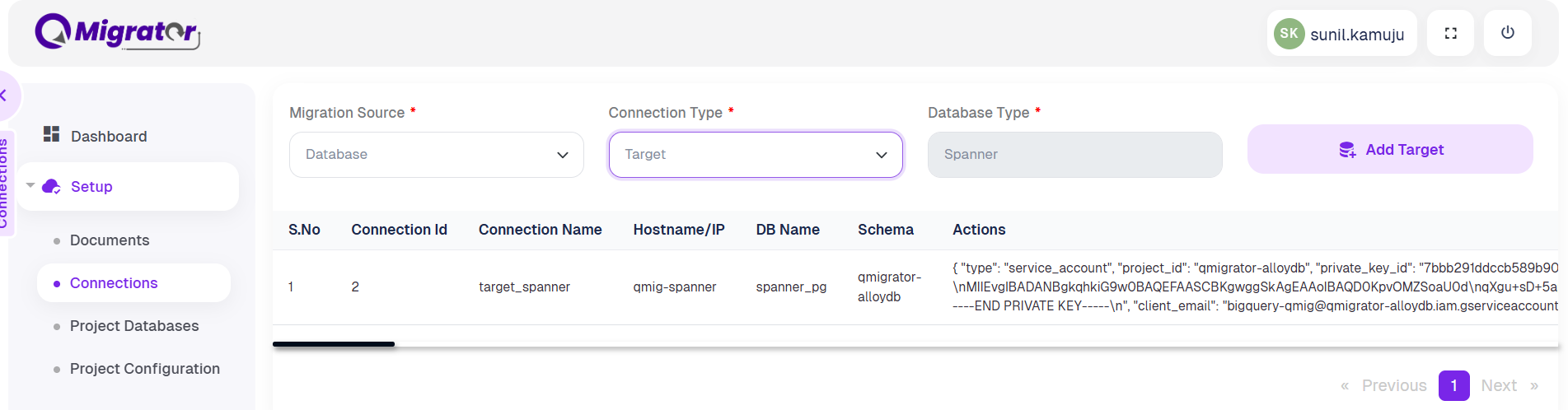
- Provide the Spanner connection details shown below
- Click Test connection to verify that the database is reachable
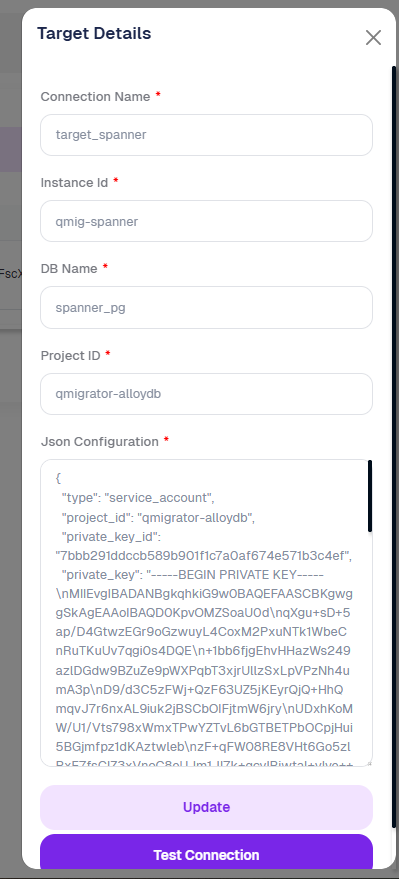
SpannerDB Connection Parameters
| Parameter | Description | Example |
|---|---|---|
| Connection Name | A reference name for the target connection | TGT_Spanner |
| Hostname/IP | The host or IP of the target database | 172.*.*.* |
| Port | Port for the database connection | 1522 |
| Service Name | The service name for Spanner databases, if applicable | spanner_pg |
| DB Name | The name of the target database | target_db |
| Schema | The schema containing the tables to migrate | qmigrator_spannerdb |
| Username | Username for target database authentication | db_user |
| Password | Password for authentication | **** |
Data Migration
Migration Steps
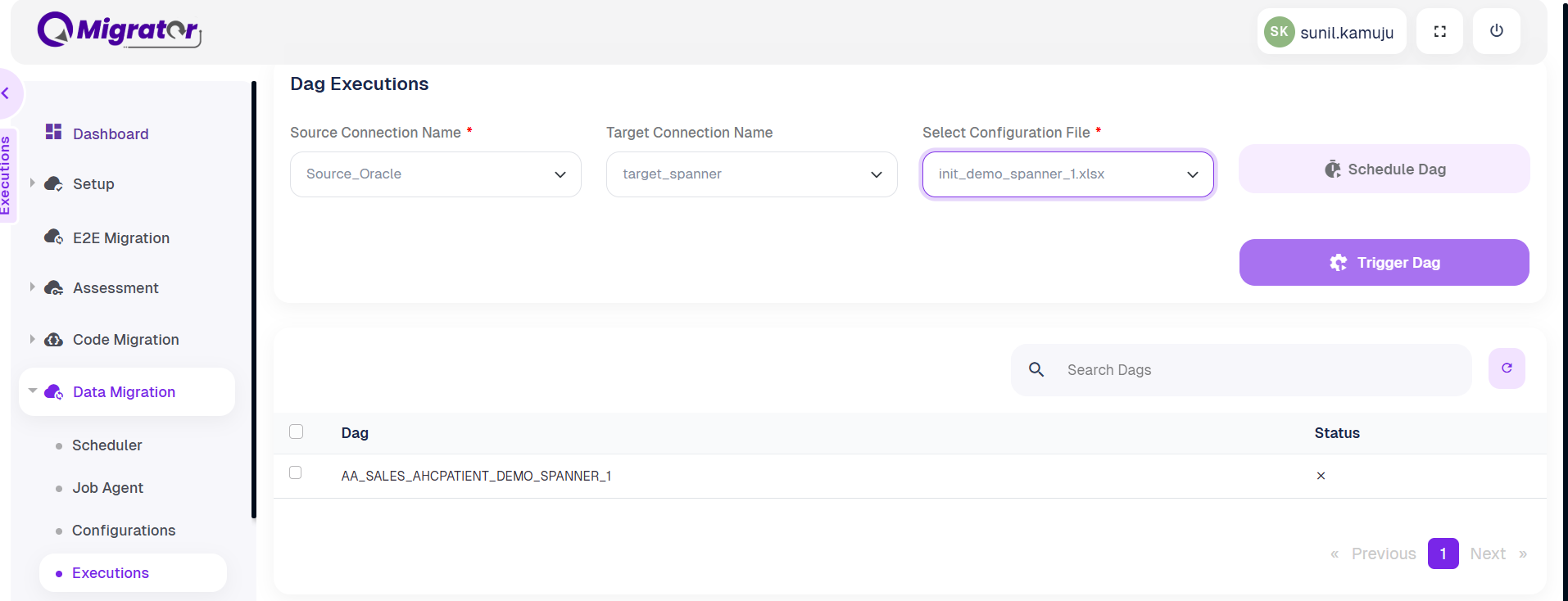
- Select the DAG execution file in the Execution tab
- Select the DAG (table) from the list to be migrated
- Optionally schedule the DAG for a future date and time by clicking Schedule DAG
- Start execution immediately by clicking Trigger DAG
Migration Operations
When data migration starts, QMigrator performs the following operations:
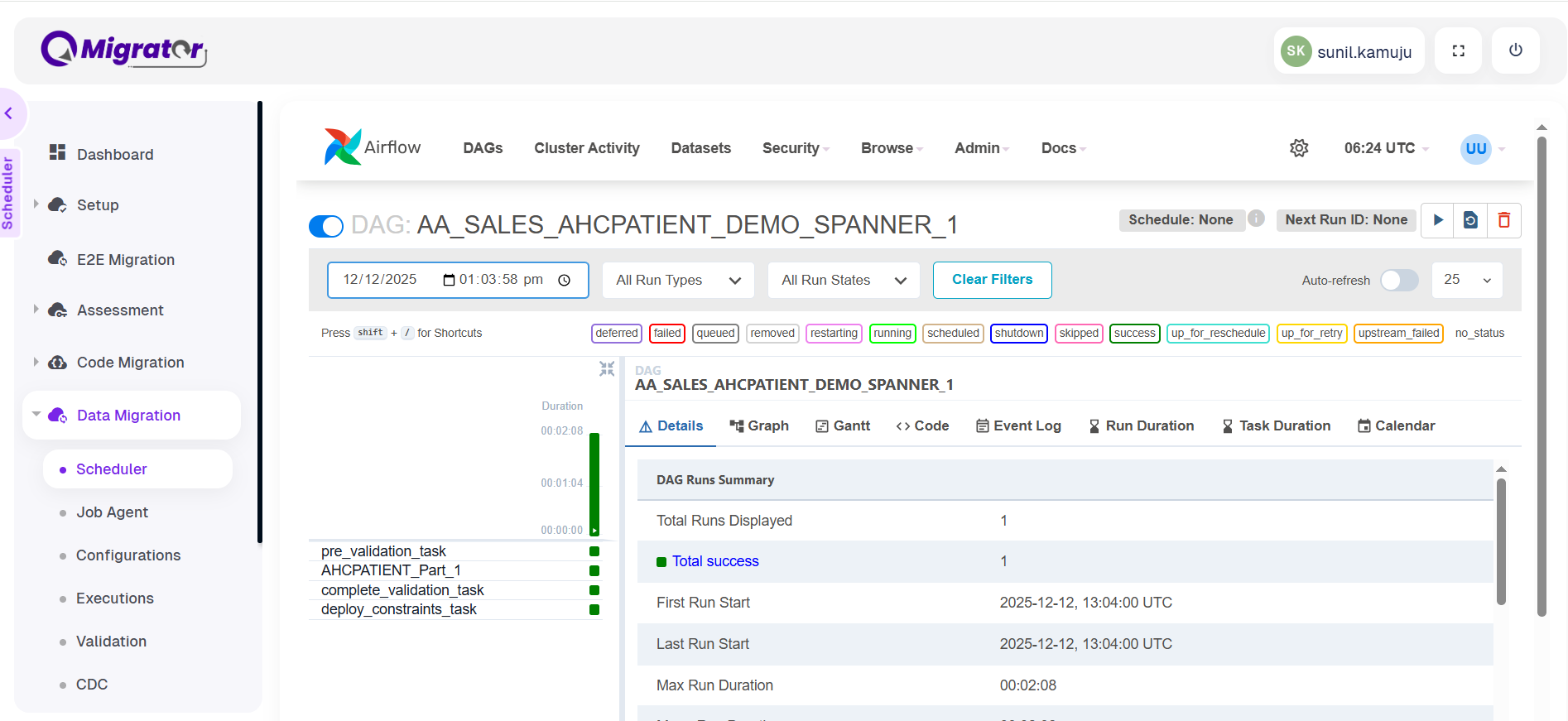
- Validation checks
- Table migration
- Constraint deployment
Verification
After data migration completes, verify that the table data is successfully available in the destination by manually checking the target database.