Assessment
The Assessment module helps evaluate migration readiness for source databases and applications. It centralizes discovery inputs, generates recommendations, tracks actions, and produces final reports for migration planning.
Prerequisite
Before using Assessment, complete user onboarding and project setup. See User Onboarding for registration, email verification, and project access.
Access Assessment
- Sign in to QMigrator.
- On the client home page, open the Assessment card.
- Click Go to Assessment.
- Review existing assessments, status, and reports.
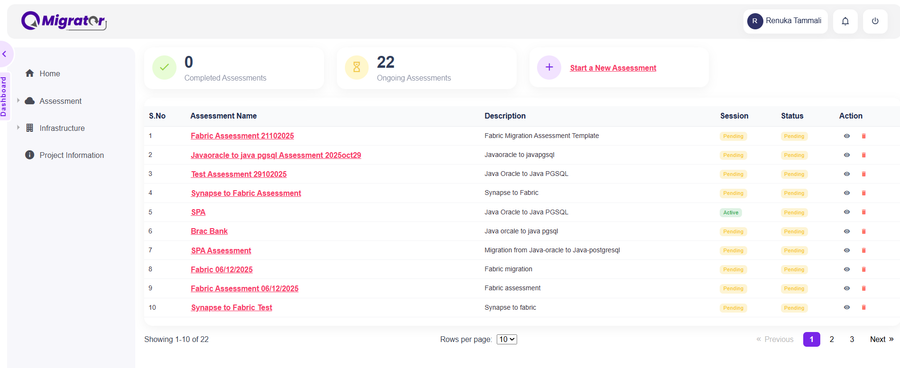
Create a New Assessment
- Click Start Assessment.
-
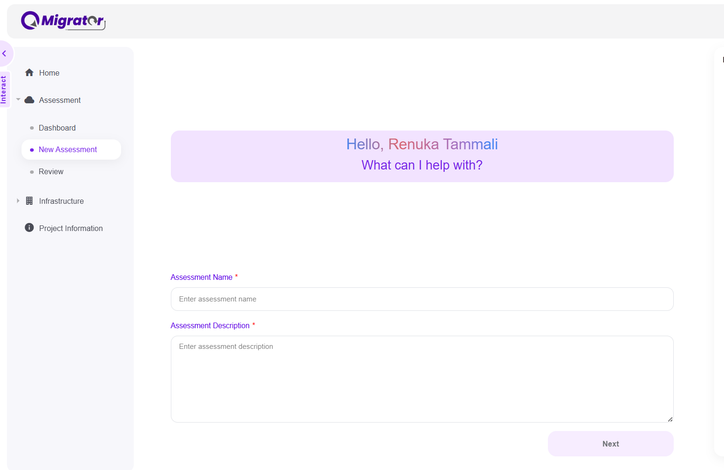
Enter required details and click Next.
- Assessment name
- Migration description
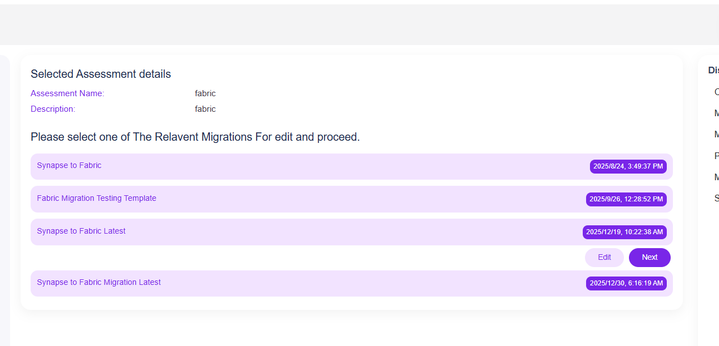
-
Select the migration scenario and update migration name if needed.
- Review details and click Save and Next.
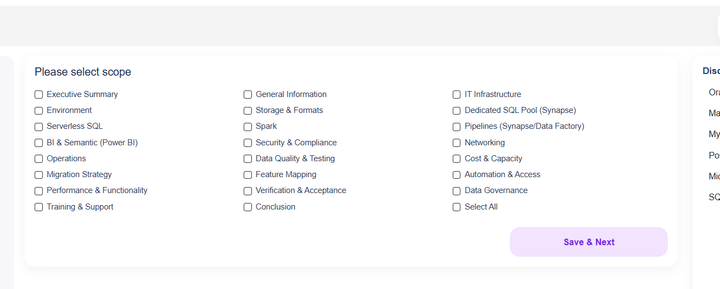
- Select one or more Key Areas and click Save and Next.
- Choose assessment creation option:
- without migration document, or
- with migration document (upload supported).
- Complete creation and return to the home page.
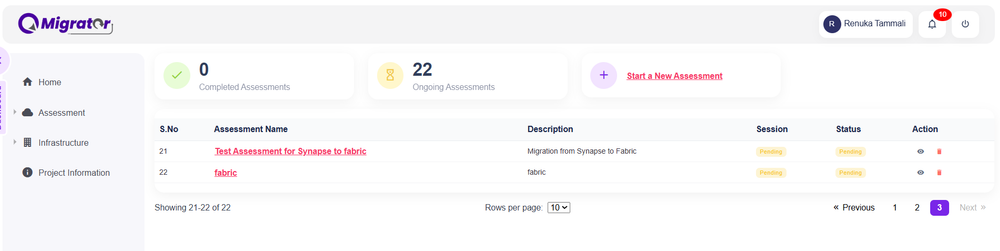
- Open the newly created assessment.
Info
Use meaningful assessment and migration names so reports are easier to identify later.
Key Areas and Suggestions
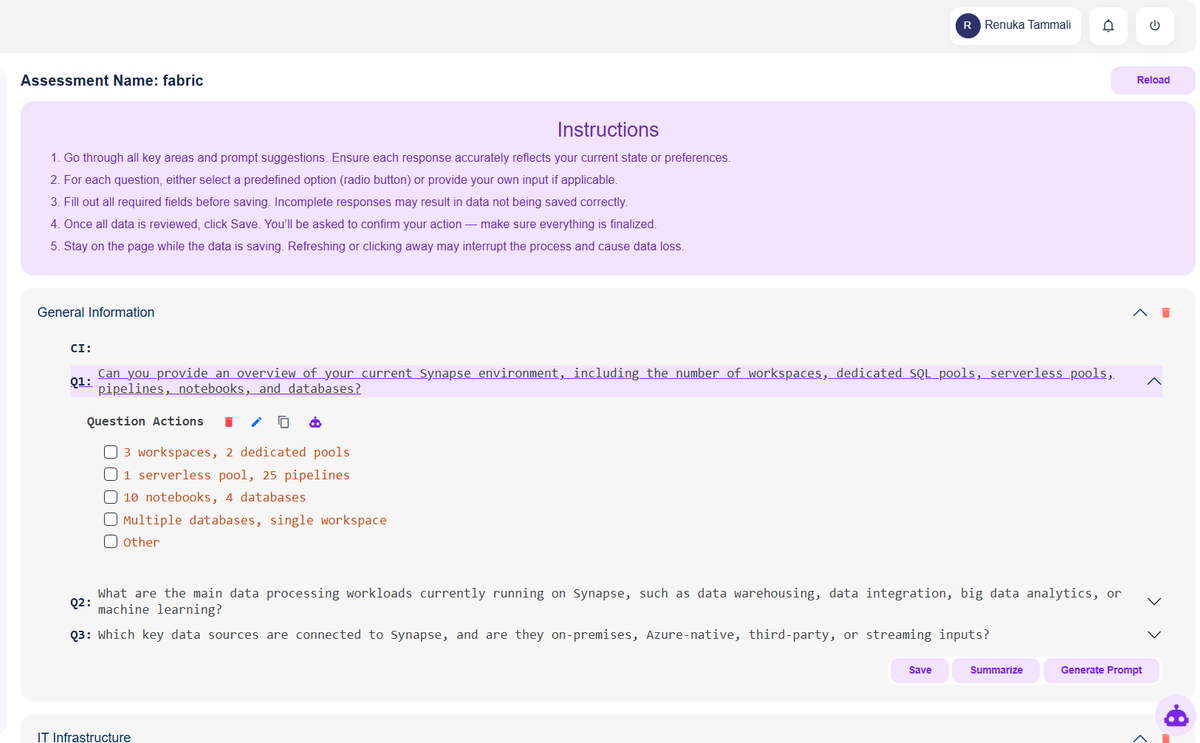
After opening an assessment:
- Review key area progress from notifications.
- Delete unnecessary key areas if not in scope.
- Edit questions to regenerate suggestions.
- Select related actions for each question and click Save.
- Add custom suggestions using Other when needed.
- Click Summarize to generate summary per key area.
Common key areas can include:
- Database assessment
- Infrastructure assessment
- Security and compliance
- Performance and AWR analysis
- Application dependency assessment
- HA and DR readiness
Upload Inputs and Extract Data
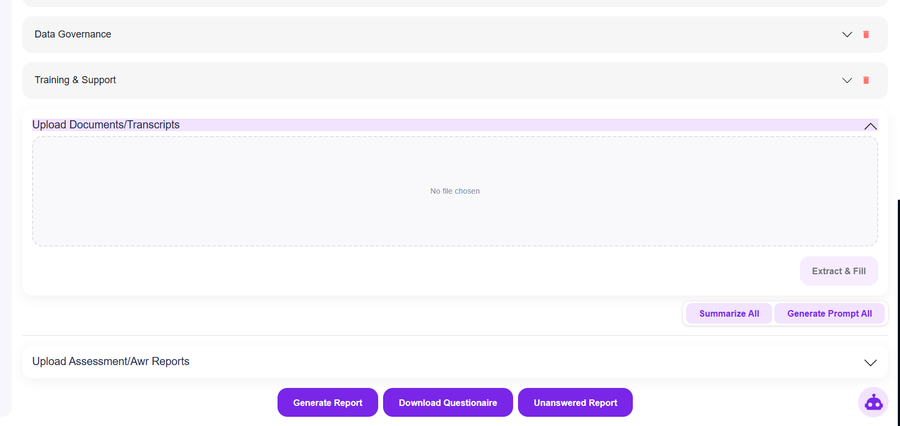
Use Extract and Fill to automatically populate assessment responses.
- Upload supporting documents.
- Start extraction.
- Review extracted values and adjust manually if required.
Typical inputs:
- Discovery reports
- AWR reports
- Architecture diagrams
- Inventory exports
- Requirement documents
- Meeting transcripts
Info
AWR uploads are considered for performance analysis and final report recommendations.
Summarize and Generate Reports
- Click Summarize All to generate summary across all key areas.
- Click Generate Report to produce the final assessment report.
- Click Download Questionnaire to export key area questions and responses.
- Click Unanswered Report to export pending or incomplete responses.
Note
Final report layout is based on templates configured by admin.
Review Uploaded Files and Evidence
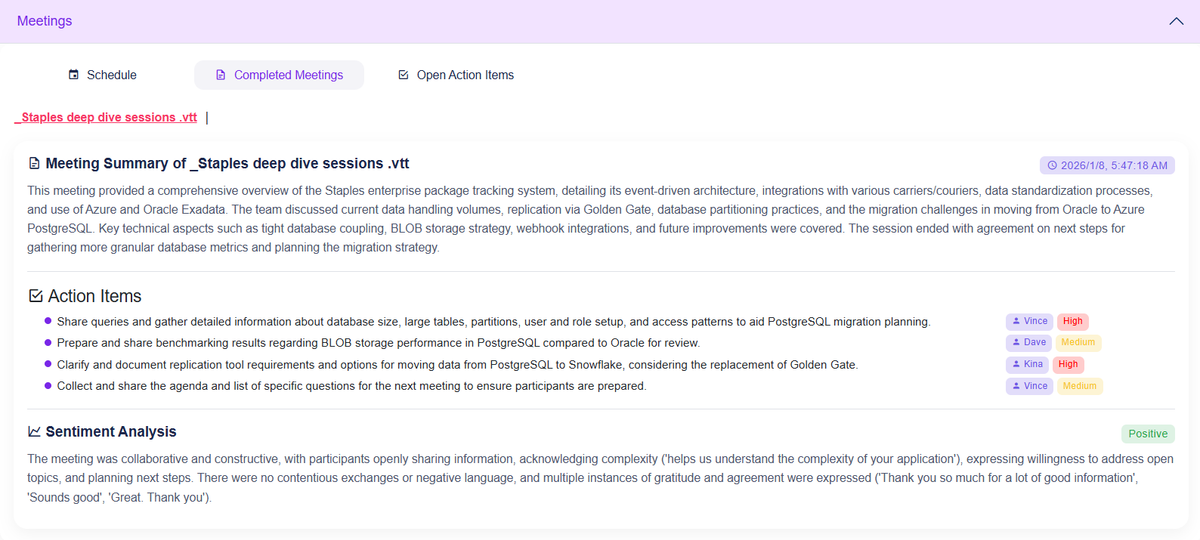
From Homepage, the action eye icon to review:
- Uploaded documents and transcripts
- Assessment and AWR reports
- Final assessment report
- Meeting-related records
This section helps validate what was used for analysis and reporting.
Manage Action Items
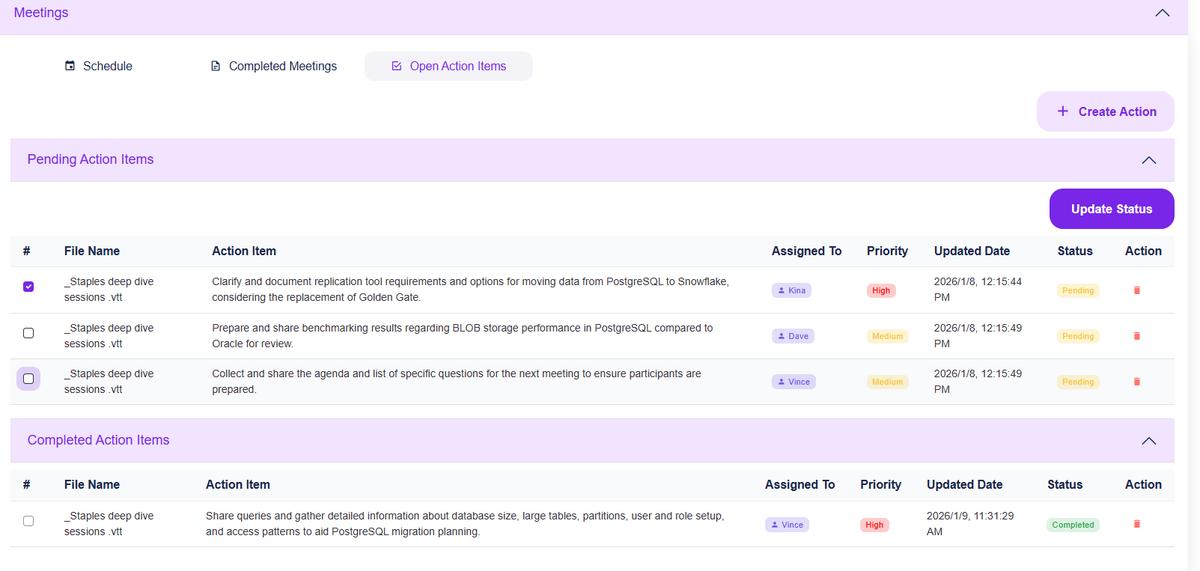
- Open Open Action Items to view pending and completed items.
-
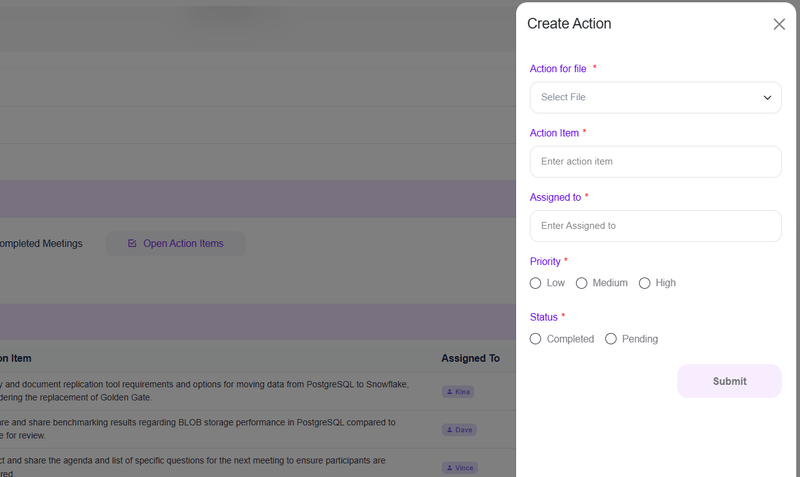
Click Create Action and submit required details.
- Title
- Description
- Owner
- Due date
- Priority
-
Mark one or more pending action items as completed.
- Delete irrelevant action items.
Meetings and Bot Workflow
- In Meetings, create a session for selected key areas.
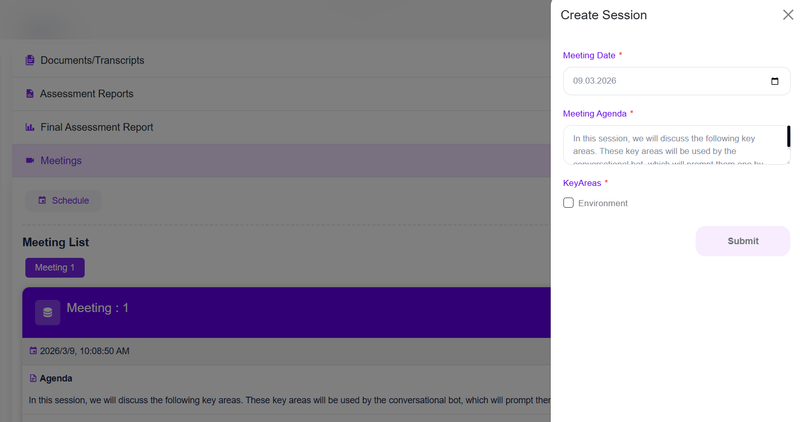
- Start the meeting to open the review page.
- Use the bot at the bottom-right and click Start.
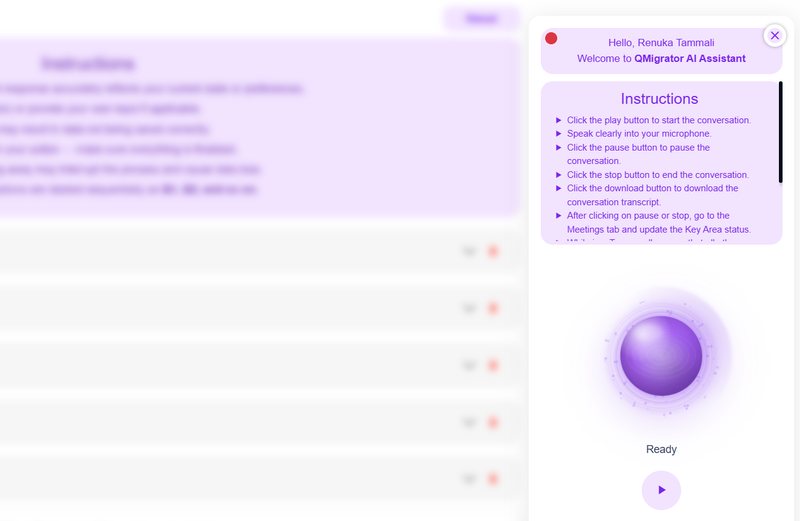
- Bot walks through configured questions and captures responses.
- Use Pause or Stop when needed.
- Bot auto-pauses after inactivity.
- Download conversation file after pause or stop.
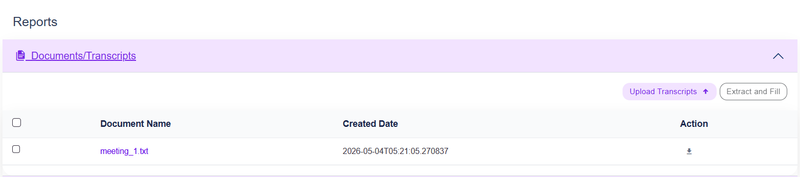
- In completed meetings, review transcript details.
- Reuse transcript files in Extract and Fill when needed.
Info
Meeting transcripts improve answer coverage and reduce manual entry effort.
Best Practices
- Upload latest AWR and inventory documents before summarization.
- Review extracted content before generating final report.
- Keep key areas limited to project scope to improve output quality.
- Track open actions before report finalization.
- Conduct meeting sessions with application and database owners.
Output Deliverables
Assessment workflow can generate:
- Migration readiness report
- Infrastructure and sizing recommendations
- Compatibility and risk observations
- Questionnaire export
- Unanswered items report
- Action item summary
- Meeting transcript-backed findings