Accessing QMigrator
Use this guide to access QMigrator after deployment. The steps differ for SaaS and non-SaaS project models.
Prerequisite
Before accessing QMigrator, ensure you have completed user registration and project setup. See User Onboarding for account creation, email verification, and project request steps.
Status and Open Project
Info
This health status and Open workflow applies only to the SaaS deployment model.
After the SaaS environment is provisioned, go to the project selection page and verify the project health status.
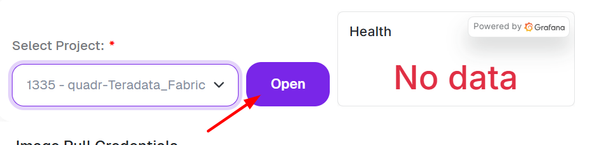
Health Status Meaning
- On: Application is healthy and available.
- Off: Application is unavailable.
- No data: Project is created but not yet fully provisioned.
Open the Project
- Select your project from the Select Project dropdown.
- Confirm the health status is On.
- Click Open to launch the SaaS application.
Warning
If the status is Off or No data, opening the project can return 404 or 503 errors.
Non-SaaS: Login with License
For Marketplace and Client Hosted models, login requires a valid license file and key.
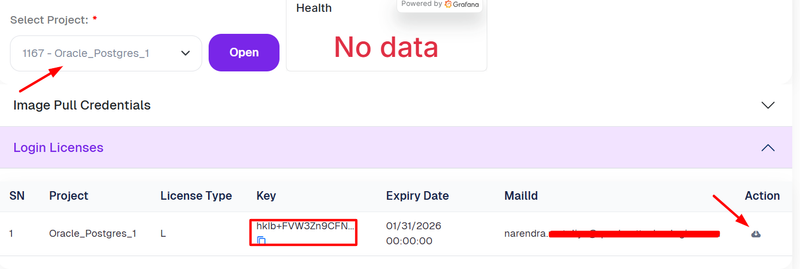
Step 1: Download License
Open the project details page and download the license from Login Licenses.
Step 2: Login to QMigrator
Open the login page and provide:
- Registered email address
- License key
- Downloaded license file
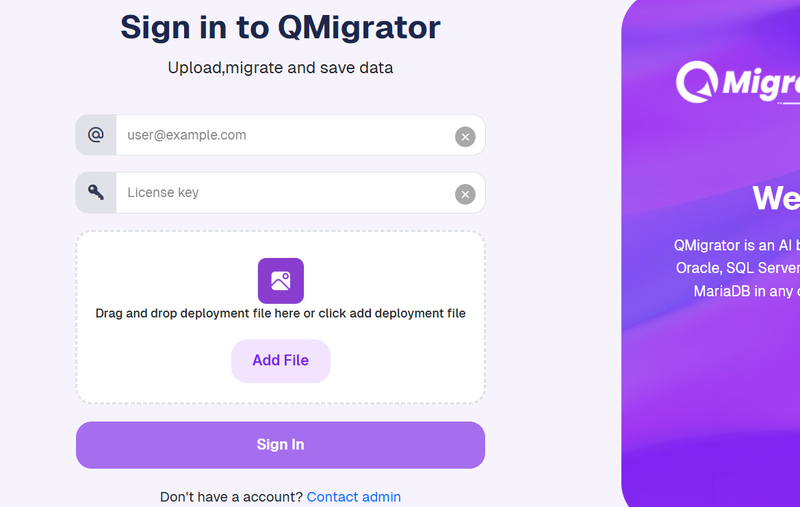
Click Sign In to access the application.